Step One - Check the Spec.
To download AutoDarts, please visit: www.autodarts.io/downloads
Download the version that matches your device.
Please note, AutoDarts has minimum system requirements, so make sure your device meets the specifications before installing.
| CPU: | CPU: 4x2.4GHz (Intel i3 or Ryzen >2018) |
| RAM: | >8GB |
| Storage: | 1GB > |
| USB Ports: | Minimum 3, 1 for each camera |
Step Two - Attaching the cameras to your light ring.
Your cameras need to be positioned 120 degrees apart for the best results when detecting darts. There are 2 suggested layouts.
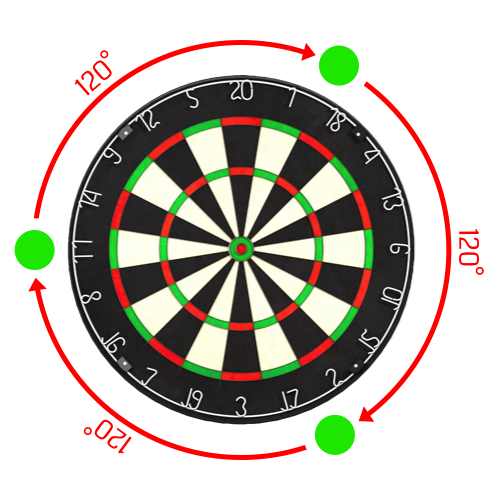
Option 1
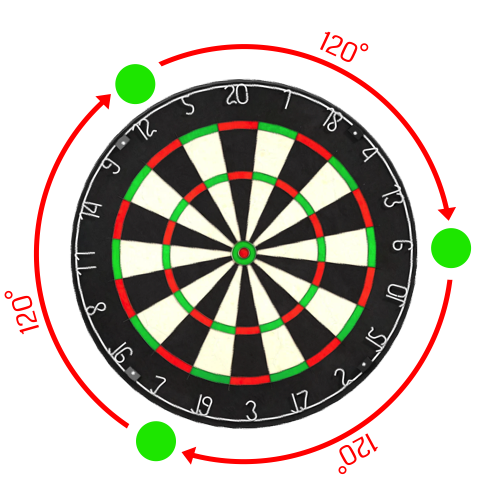
Option2
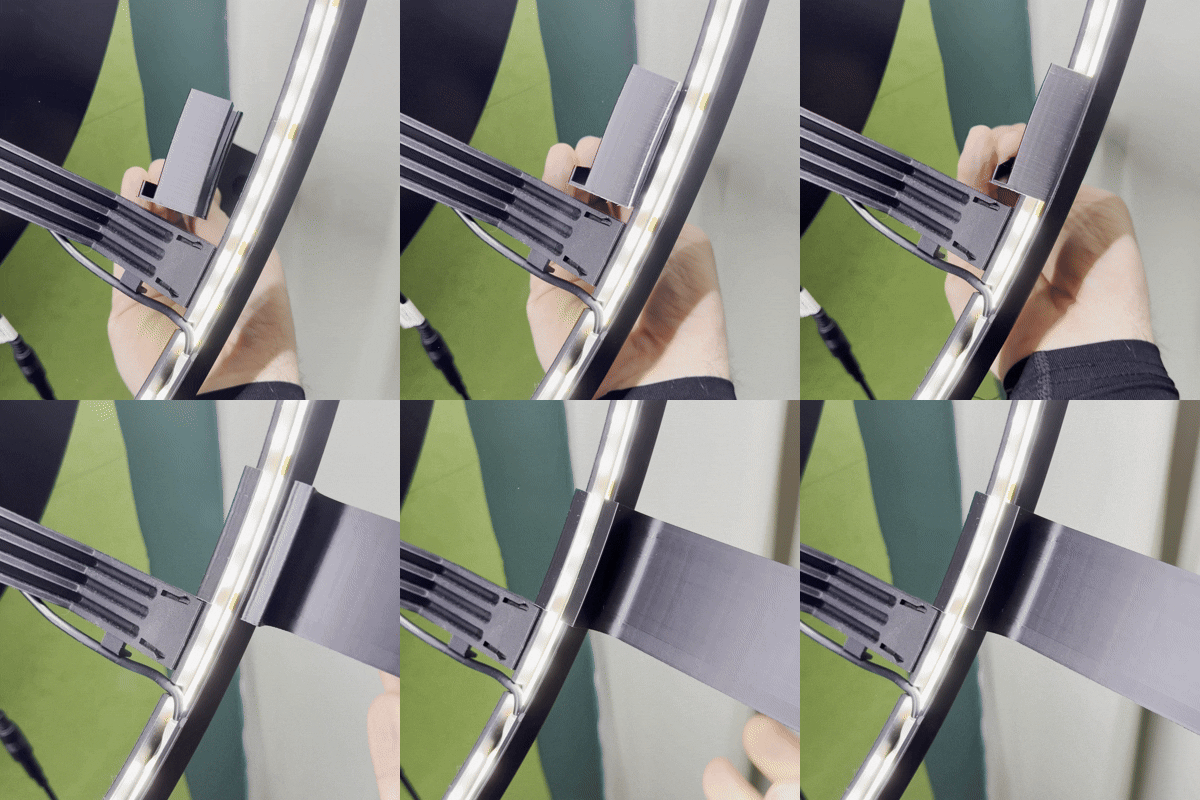
Step Three - Connect the Cameras
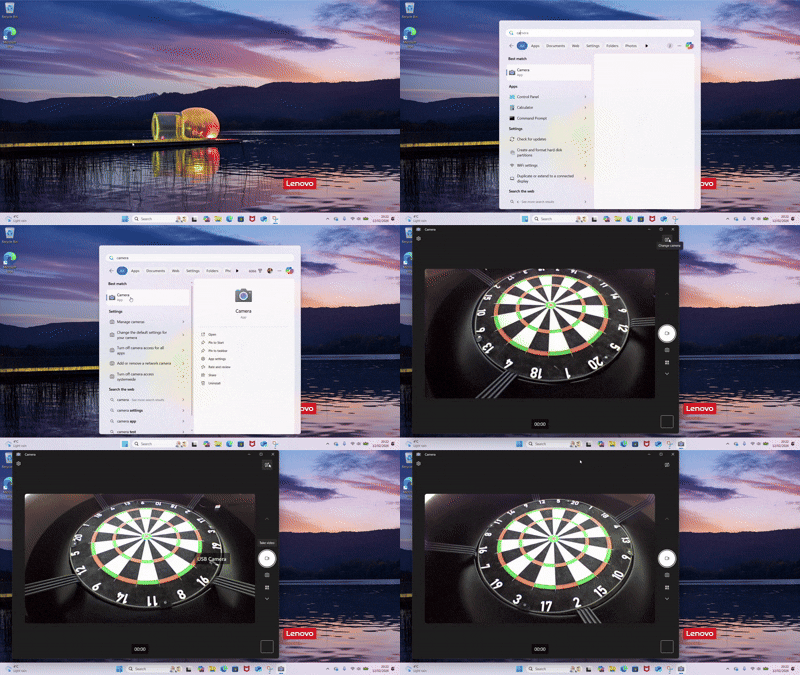
The Cameras need to be connected directly to your computer. If you do not have the required number of USB ports, please consider a powered USB Hub. Once connected open the Camera Application to check they have been detected by the computer.
While in the Camera Application use the FLIP CAMERA button to cycle through the video feeds.
Step Four - Install AutoDarts
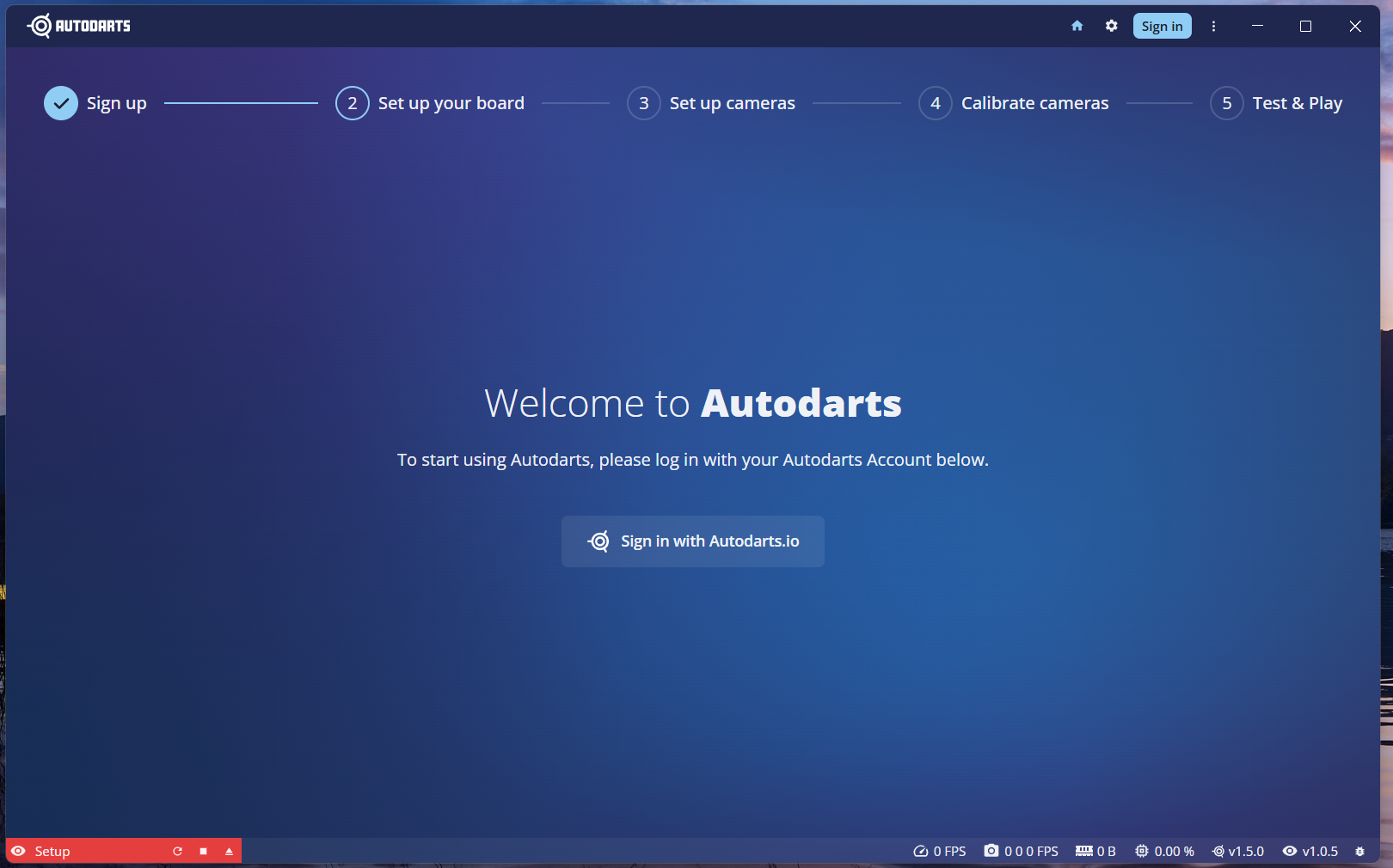
Go to your downloads folder and double click the installer for AutoDarts. Once installed AutoDarts should automatically open. If not there will be an AutoDarts icon on your desktop you can use.
You will be presented with the below screen.
Step Five - Sign into AutoDarts
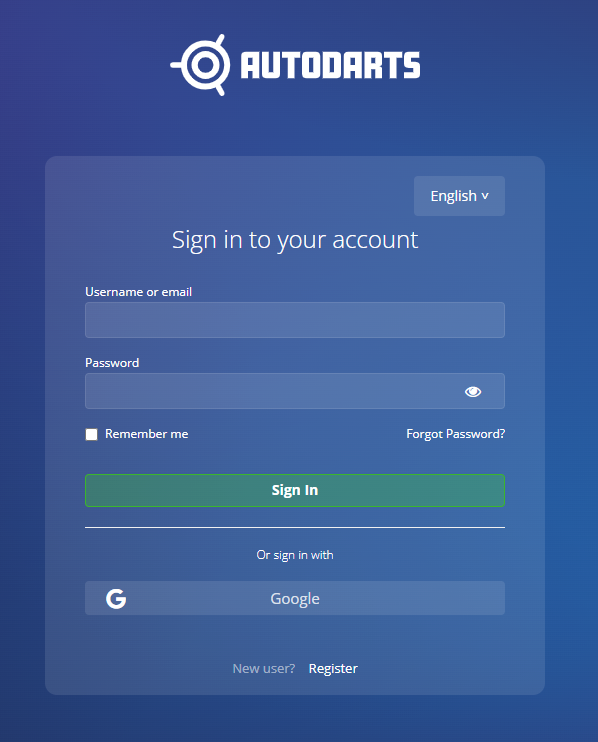
Select the "Sign in with AutoDarts" button. This will open a separate web page.
Step Six - Create your AutoDarts account.
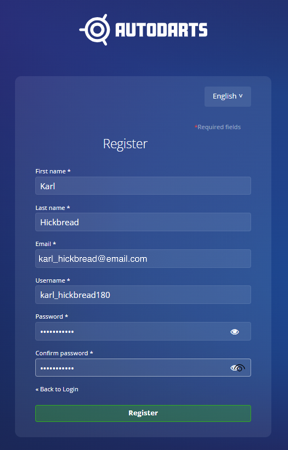
Register with AutoDarts using one of the available methods, following the onscreen prompts.
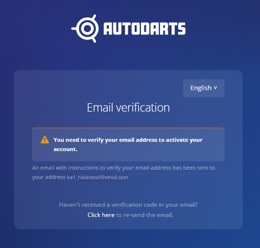
Step Seven - Email Verification
Check your email to complete email verification. If you haven't received your email, please check your Spam/Junk folder.
Step Eight - Connect your account.
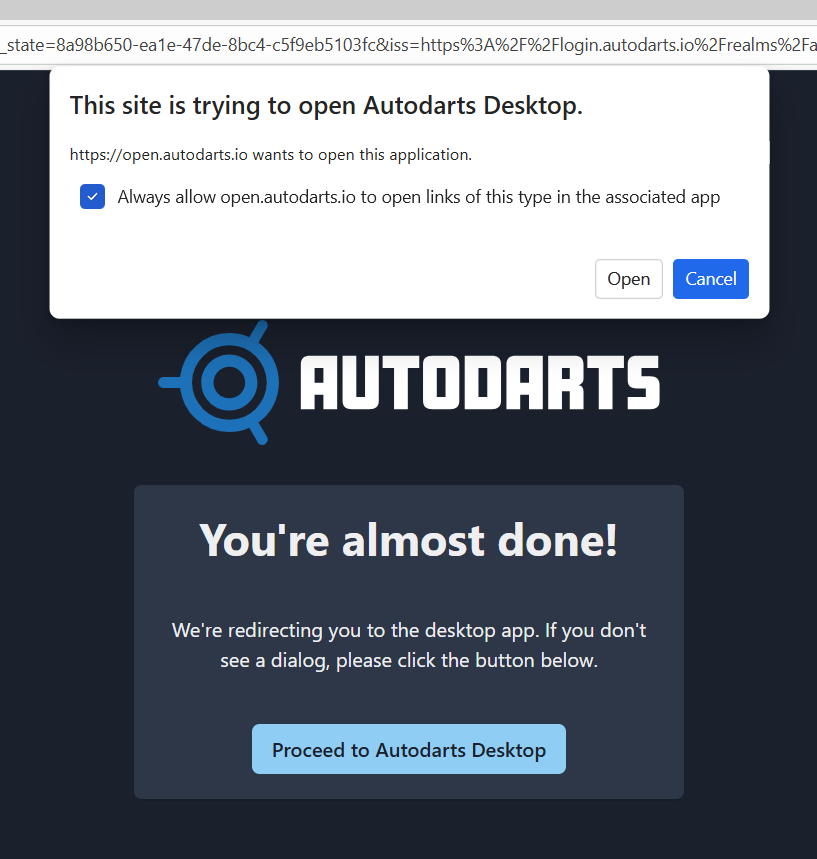
Once you have completed the email verification, check the box with the title "This site is trying to open AutoDarts Desktop". Followed by the "Proceed to AutoDarts Desktop' button and head back to AutoDarts application.
Step Nine - Board Setup
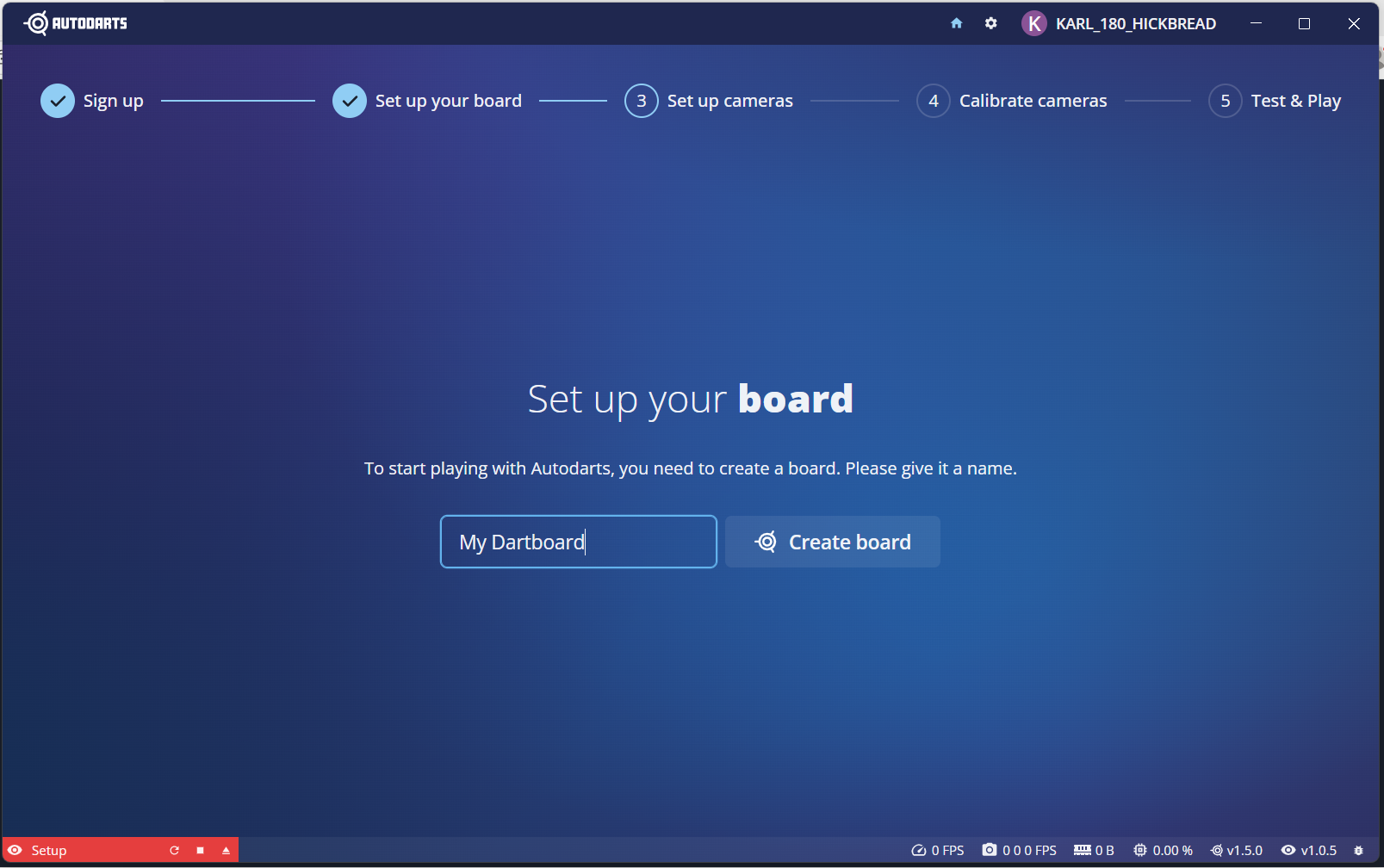
Enter a name for your Dartboard and select Create Board.
Step Ten - Set up Cameras.
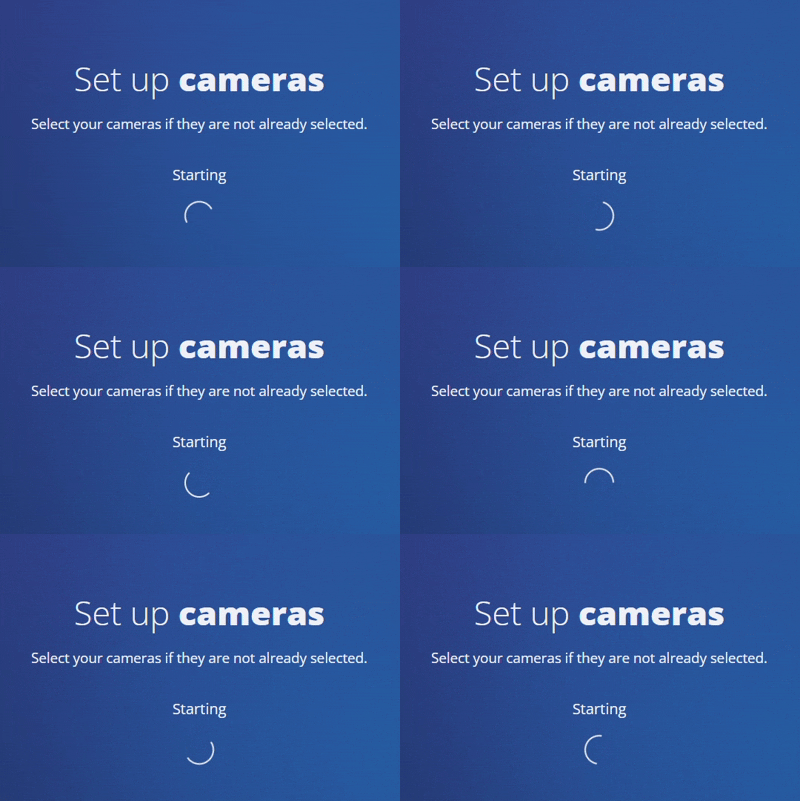
AutoDarts will now work to detect your cameras. This can take a few minutes so please be patient.
If this doesn't work after around 3 minutes, select your account name in the top right hand corner and choose Reset Detection. You wont need to create your board again, just select it from the dropdown and press next.
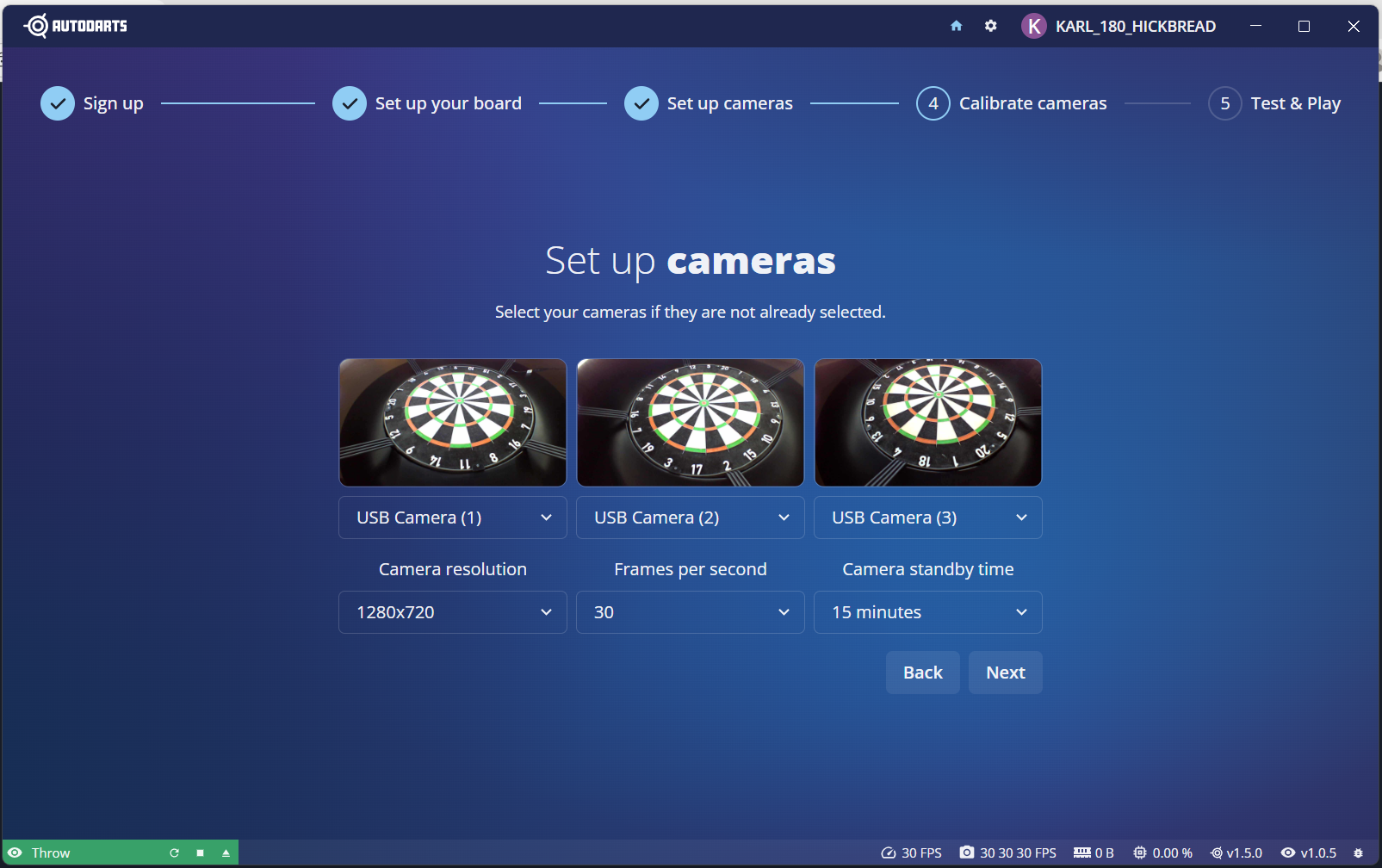
Step Eleven - Cameras Detected
Once your cameras have been detected you will see your three cameras on screen as show below. Select next.
Step Twelve - Board Calibration
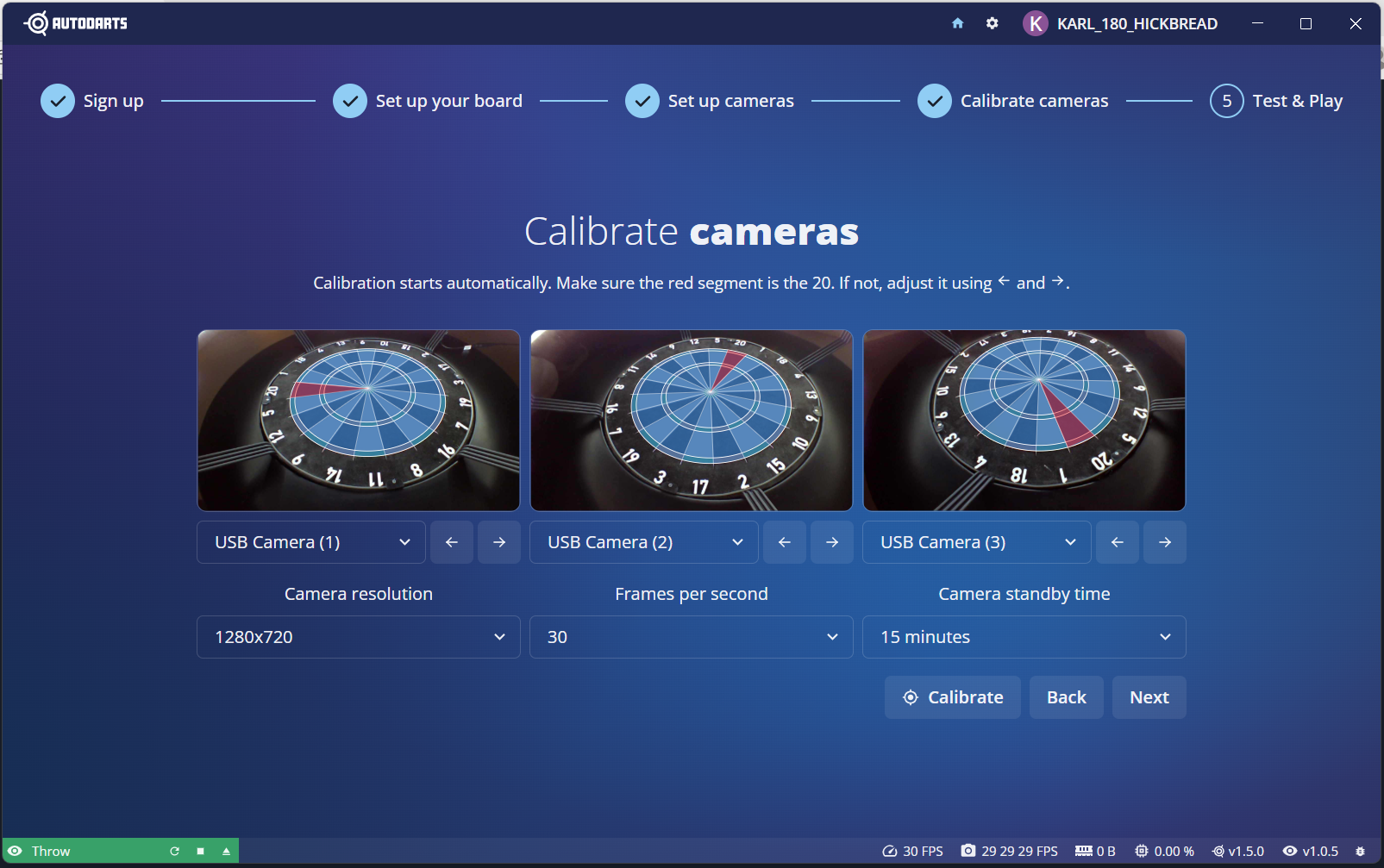
AutoDarts will now map out your board by placing a blue overlay on your board, with the 20 segment highlighted in red. If this doesn't happen automatically, select the Calibrate button. Once calibration is completed press Next.
Step Thirteen - Test Throw
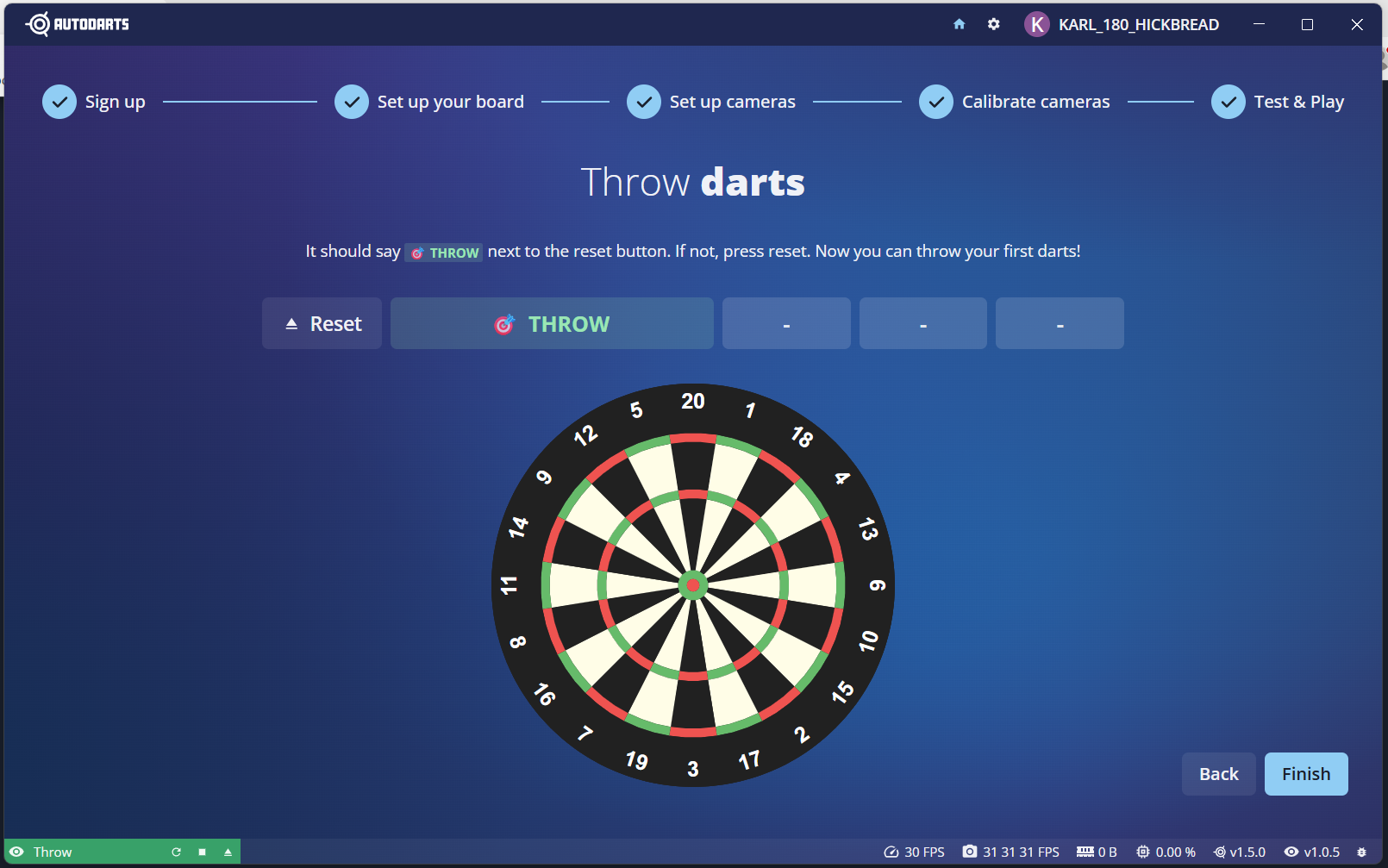
You may now test the cameras by throwing at the board. If your throw is not detected select the icon located in the bottom right corner of the screen and try again. Once your darts are detected press Finish.
Step Fourteen - Lets Play Darts!!!
Congratulations you have completed the AutoDarts setup process.
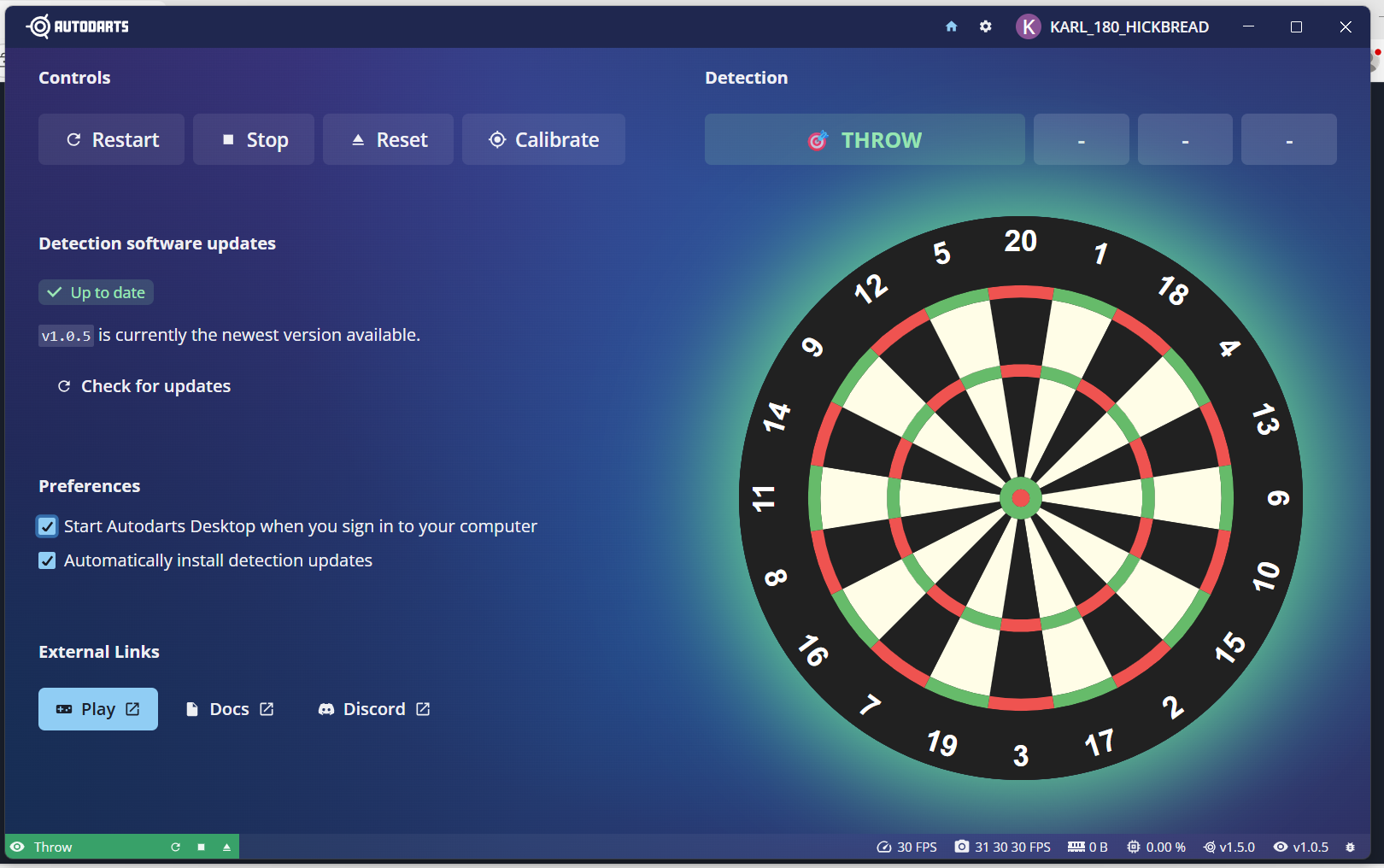
We would suggest setting AutoDarts to start when you sign into your computer, you can do this by selecting the option within Preferences.
To play Darts select the Play button. This will Open the AutoDarts Website.
BONUS CONTENT ON THE NEXT PAGE!
Other information:
Join the AutoDarts Discord Community for help and support using AutoDarts.
https://discord.com/invite/autodarts
Elevate your AutoDarts experience with the AutoDarts Tools Google Chrome/Microsoft Edge extension. You can get by searching for Tools for Autodarts in your chosen browser.